

Why Does Google Make Simple Things Feel Impossible?
(A Very Human Story About reCAPTCHA, API Keys, and Losing One’s Grip on Reality)
At some point in the last few years, you’ve probably been told you need something called a reCAPTCHA key, or an API key, or a Google Maps key on your website.
In theory, this should be straightforward. In reality, it feels like being dropped into an escape room where the clues are written in another language — and the door you came in through keeps locking behind you.
This morning, I sat down to do what should have been a routine task: enabling fraud protection on a website. Not building anything custom. Not engineering a security system. Just enabling the feature that prevents bots from hammering credit card numbers during checkout.
That thing is called Google reCAPTCHA.
So… What Is reCAPTCHA, Anyway?
You’ve interacted with reCAPTCHA a thousand times, even if you’ve never thought about what it’s called. It’s the little checkbox labeled “I’m not a robot.” It’s the blurry images asking you to click all the traffic lights, crosswalks, or bicycles until you start questioning whether you’ve ever seen a real traffic light in your life.
At its core, reCAPTCHA exists to answer one very simple question:
Is this a real human, or is this a bot trying to do something it shouldn’t?
CAPTCHA, standing for “Completely Automated Public Turing test to tell Computers and Humans Apart,” has long been the frontline defense against bots and automated scripts attempting to access websites and services. Websites use it to stop spam, fake form submissions, automated attacks, and credit card testing. If you run a website that accepts payments, chances are you’ll eventually be told that reCAPTCHA is “required.” And on the surface, that makes total sense.
The problem isn’t learning how to set up reCAPTCHA. The problem is that just when you think you know how to do it, Google changes the process.
What used to be straightforward is now scattered across multiple dashboards, renamed, reclassified, or quietly tucked away. Features that were once obvious are suddenly “legacy.” Entire setup paths disappear, reappear, or move without warning. So even if you’ve done this before — many times — the rules are never quite the same twice.
The Five-Minute Task That Wasn’t
I’ve been building websites for a long time and have set up reCAPTCHA multiple times. But each time Google “improves” the system, the path gets less clear, not more. What used to be a simple key-generation step now feels like a scavenger hunt through half-documented interfaces, hidden options, and assumptions that you already know Google forgot to tell you.
This should still be a five-minute task. Instead, it becomes one of those “quick errands” that somehow eats your entire afternoon. Not because the concept is difficult — but because the process keeps changing. Interfaces move – terminology shifts. What worked the last time no longer applies the next. Even when you’ve done this before, the path forward is never quite the same twice.
By the time you realize this isn’t going to be quick, you’re already invested. And that’s usually when things start to unravel.
When the System Starts Working Against You
This is usually the point where frustration sets in — not the dramatic, throw-your-laptop kind, but the slow, quiet kind that makes you reread the same screen and assume you must be missing something obvious.
Much of that frustration comes from how little useful feedback the system provides. You’re told the setup is “incomplete,” but there’s no explanation of what that actually means. There are no errors to fix, no fields left blank, no guidance on what to do next — just a generic warning that implies something, somewhere, still isn’t finished.
Instead of helping you move forward, the interface offers ambiguity. And because nothing is clearly broken, the natural assumption becomes that the problem must be you — even when it isn’t.

What makes this especially tricky is that the reCAPTCHA setup is deceptive. It presents itself as simple while quietly concealing layers of complexity underneath. Google no longer offers a single version of reCAPTCHA; there are multiple versions, created at different times and for different purposes, spread across dashboards that don’t clearly reference one another.
Some are newer.
Some are older.
Some run invisibly in the background.
Some still rely on the familiar checkbox everyone recognizes.
Google actively nudges users toward the newer versions, while major platforms continue to rely on older ones — and Google does very little to explain that distinction or why it matters. The result is a setup process where you can follow every instruction, fill in every required field, and still be told something is “incomplete,” with no indication of what that actually refers to. Every page assumes context you were never given. Every warning is just vague enough to be unhelpful. Instead of guiding you forward, the system quietly withholds confirmation.
The Part No One Explains
What makes this experience especially confusing is that Google often doesn’t consider these tools “active” simply because they’ve been configured. In many cases, the system waits for real-world usage before it acknowledges that anything is working at all. There is no clear message telling you this. No explanation that activation is inferred rather than confirmed. No reassuring indicator that says,
“You’re done — this will take effect when it’s used.”
Even when everything is set up correctly, the interface still indicates that something is wrong. And by the time the system finally catches up — sometimes immediately, sometimes much later — you’ve already spent far more time than the task ever deserved.
At that point, the protection is working, the warnings gradually lose relevance, and the dashboard may never fully reflect reality. You move on, not because the experience made sense, but because you’re too tired to keep arguing with it.
It’s Not Just reCAPTCHA
What makes this experience especially maddening is that it isn’t unique. If you’ve ever tried to set up a Google Maps API key, connect Gmail to a website, or authenticate anything through Google, you’ve probably felt this exact same frustration. The instructions are technically correct, but the experience is unforgiving. Miss one invisible requirement and the system doesn’t guide you — it simply refuses to cooperate.
Why It Feels So Hostile
This isn’t because Google engineers don’t know what they’re doing. It’s because these tools aren’t designed for regular users who set something up once and move on.
They’re designed for scale.
For automation.
For enterprise teams who already know the rules.
The interface exists, but clarity is optional. And that’s why these experiences feel so personal. You start blaming yourself instead of the system. You assume you’re missing something obvious. You question your competence — even when you’ve done everything right.
A Clear, Updated Guide to Setting Up Google reCAPTCHA (Without Losing Your Mind)
If you’re still reading this thinking, “Okay, but I still actually need to set this up,” I get it. You don’t want theory — you want it to work.
So here’s a straightforward walkthrough of how to generate Google reCAPTCHA keys as it exists right now, without falling into every trap Google leaves lying around. This isn’t every possible option or configuration. It’s the path that works for most websites today.
First, a quick heads-up before you start
Google currently has more than one place where reCAPTCHA lives, and not all of them do the same thing. This is intentional. You’re going to see references to “Enterprise,” “score-based,” and older checkbox-style reCAPTCHA. Don’t worry about all of that yet — just know that the interface you land on matters.
If a platform tells you that reCAPTCHA is required, it’s usually looking for one of two things:
-
The first is reCAPTCHA v3, which runs invisibly in the background. Visitors never see it, never click anything, and never solve puzzles. It quietly analyzes behavior and assigns a score to determine whether someone is likely human. (It’s Google’s invisible bot protection service that analyzes user behavior on a website to assign a risk score (0.0 to 1.0) for each interaction)
-
The second is reCAPTCHA v2, the familiar checkbox that says “I’m not a robot.” This version is older, but many platforms still rely on it as a fallback when the invisible version isn’t enough.
Sometimes it’s both. Google does not make this obvious.
Where to create a reCAPTCHA key (this is where people get stuck)
When you click Google’s reCAPTCHA links, you’ll almost always be pushed toward their newer dashboard. That’s fine — just understand that this is not the only place reCAPTCHA exists. If you need the familiar “I’m not a robot” checkbox version, Google quietly keeps it on a separate, older setup screen for the reCAPTCHA V2. It still works. Many services still require it. It’s just no longer front and center.
If you don’t see the option you’re expecting, don’t assume something is wrong with your account. Google distributes reCAPTCHA configuration across multiple interfaces, and the feature you need may exist in a separate setup screen, as shown in the screenshots below. Again, here are the links to create your reCAPTCHA V3 and reCAPTCHA V2.
reCAPTCHA V2 (AND V3)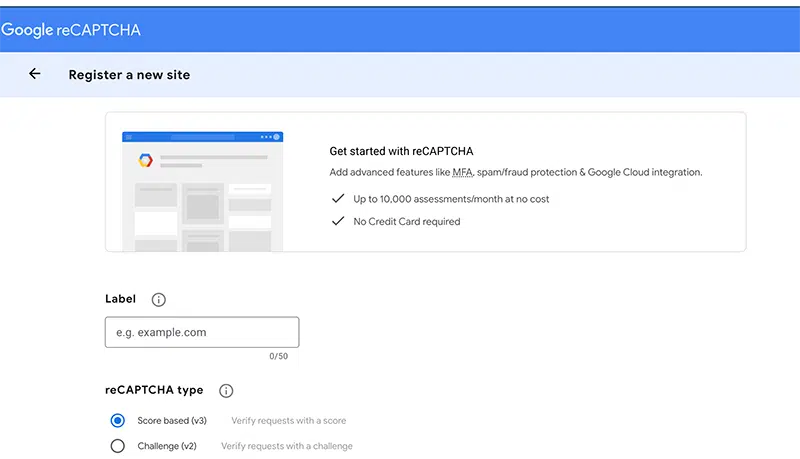 |
reCAPTCHA V3 ONLY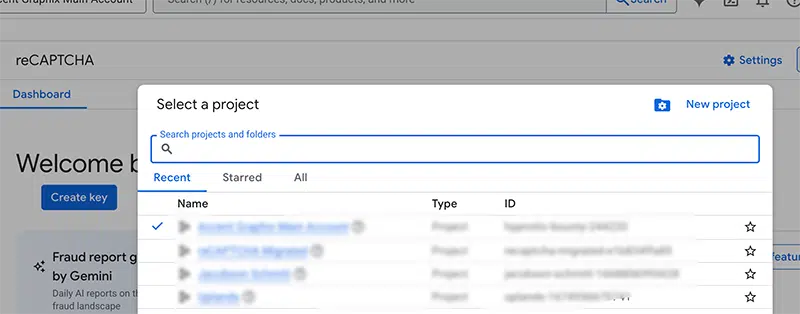 |
Creating the key itself
Once you’re on the correct setup screen, the process itself is mercifully simple. You’ll:
- Give the key a name (this is just for you)
- Choose the reCAPTCHA type you were told to use
- Add your website’s domain (One important note here: Google is extremely picky about domains, and these must be added just as the domain itself, one domain at a time – SEE BELOW)

After you save, Google will give you two strings: a site key and a secret key. These are what your website or service is asking for.
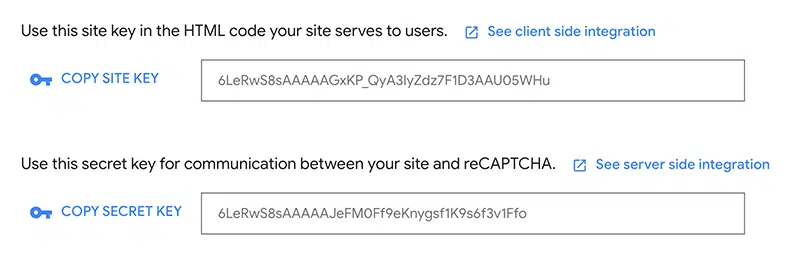
Pasting the keys into your website or platform
This is the part people expect to be the hard part — and ironically, it’s usually the easiest. Most platforms clearly label where these keys go. You paste them in, save your settings, and move on.
Final reassurance (because it matters)
If this process felt harder than it should have, that’s not a reflection of your ability. It’s the result of tools that change frequently, explain little, and assume you already know what they forgot to tell you.
Once you’ve wrestled reCAPTCHA into place, you’re not “bad at Google” — you’ve survived another round of it.
And yes… next time they’ll probably change it again.